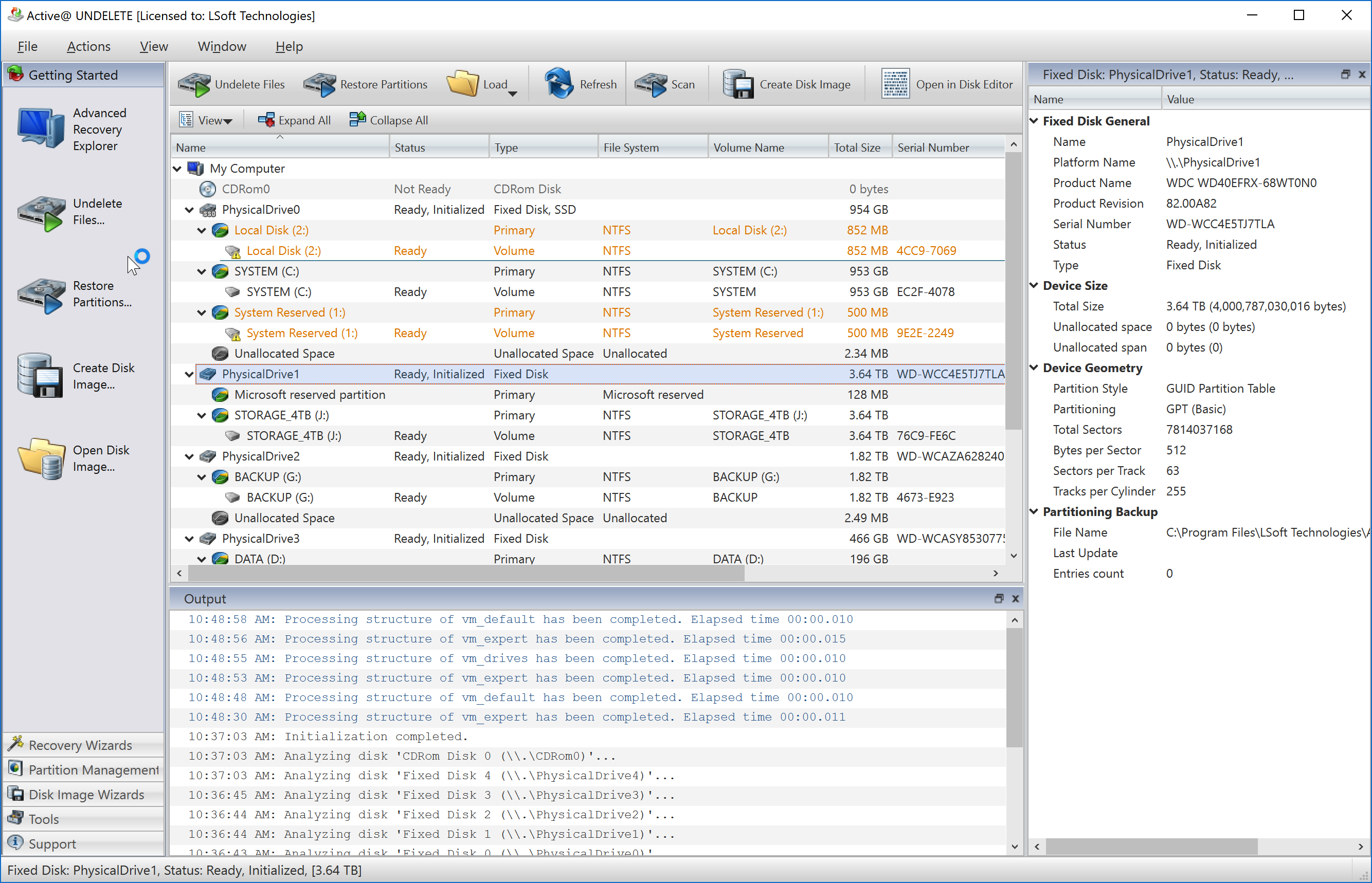
The Recovery Explorer View is the default view that you see after the application starts. The left panel is the Tree pane. It displays the hierarchical structure of all drives, devices,folders and files of the scanned Logical Drive, Virtual RAID and opened Disk Image. Scan Results appear here if you scan a device. Active@ UNDELETE is designed to explore and browse all data storage devices on your computer in different ways to find and recover lost data.All information in the application is organized in tabbed views that provide easy access to information for different purposes. Four of the main views include:
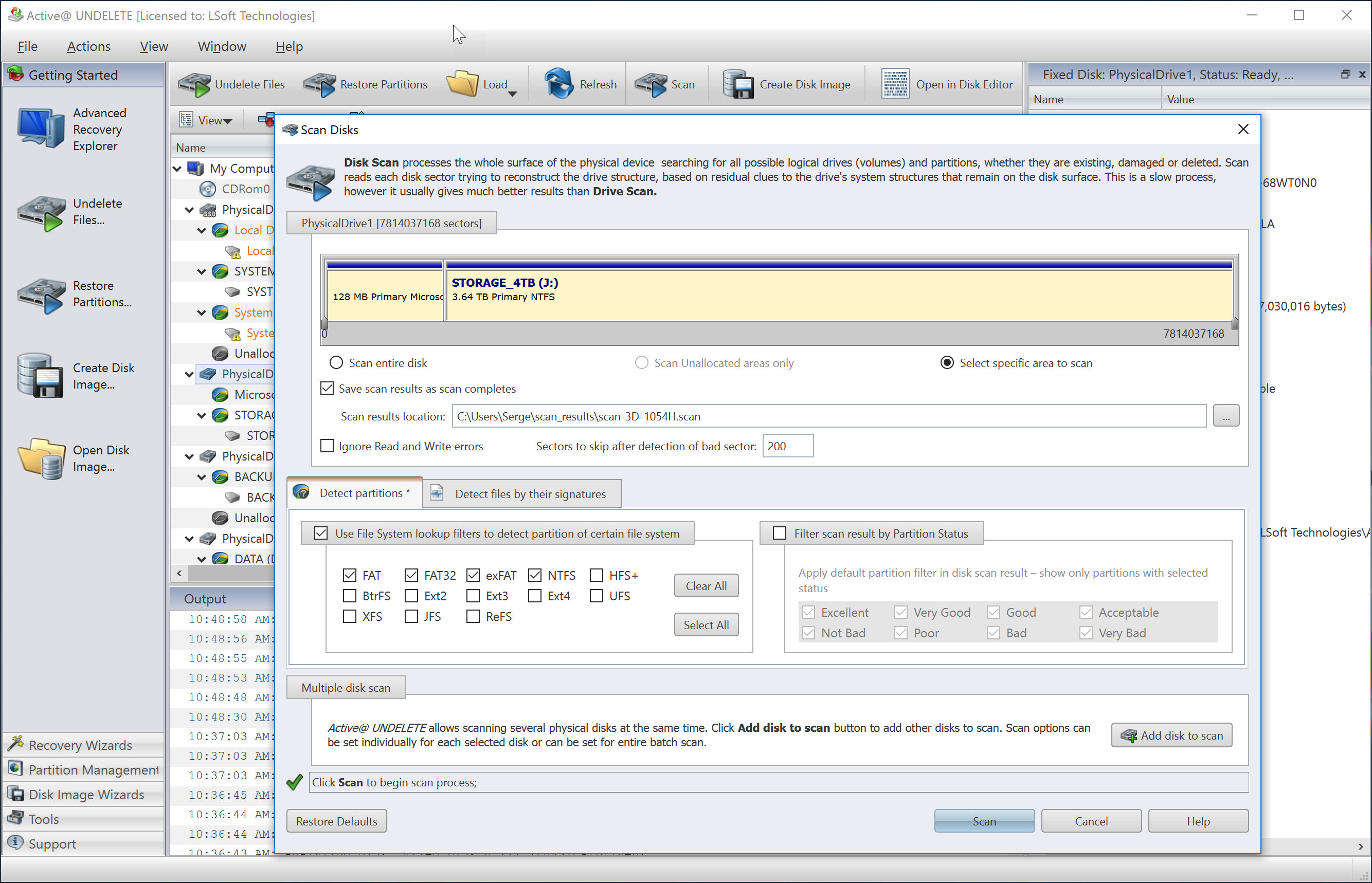
Scanning a physical drive will reveal found partitions or files by their signature.
While processing a scan of a partition or physical storage device, a progress bar is displayed along with the number of found partitions, files detected by their signatures and the estimated time to completion.
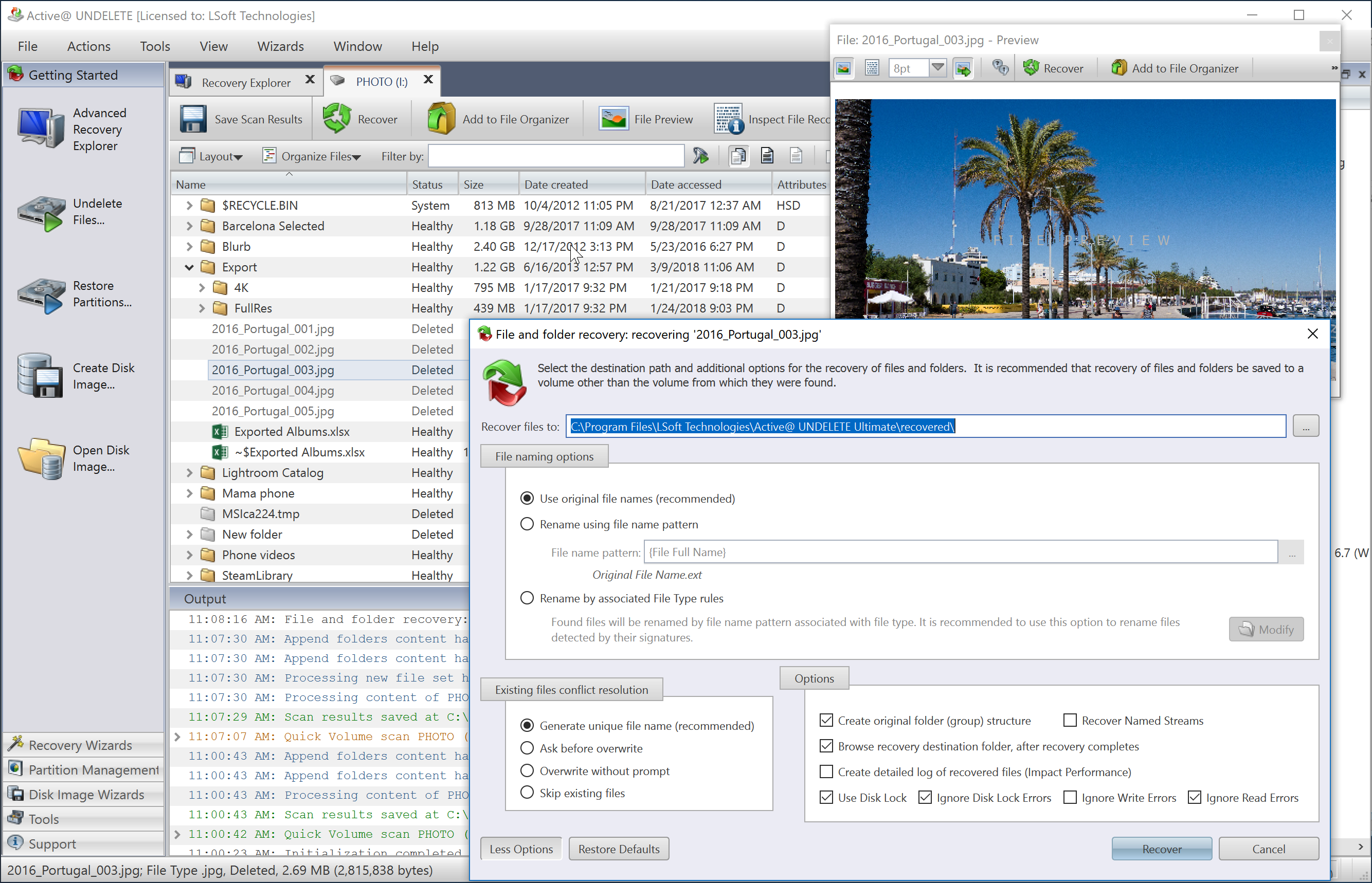
Recovering deleted files and folders is one of essential features of Active@ UNDELETE.
After disk scan you can select files in Scan Results View or Search Results view be marking the check box next to the file name.
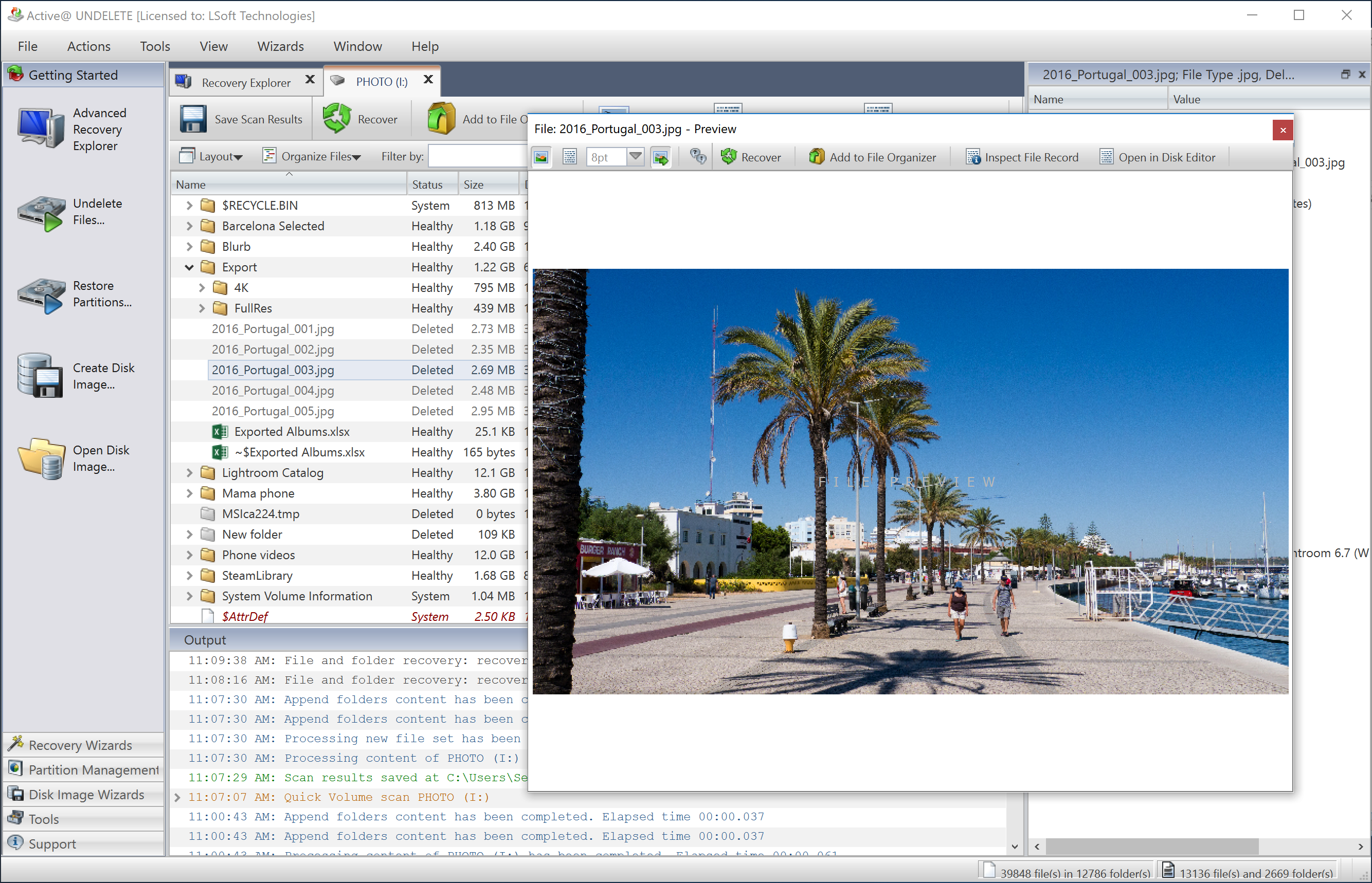
File Preview File Preview feature allows you to view the contents of an image file (jpg, bmp, gif, png etc.) before you recover the file. This is especially useful in determining which files to recover. If the preview file is not an image file, it appears in hexadecimal and text mode.
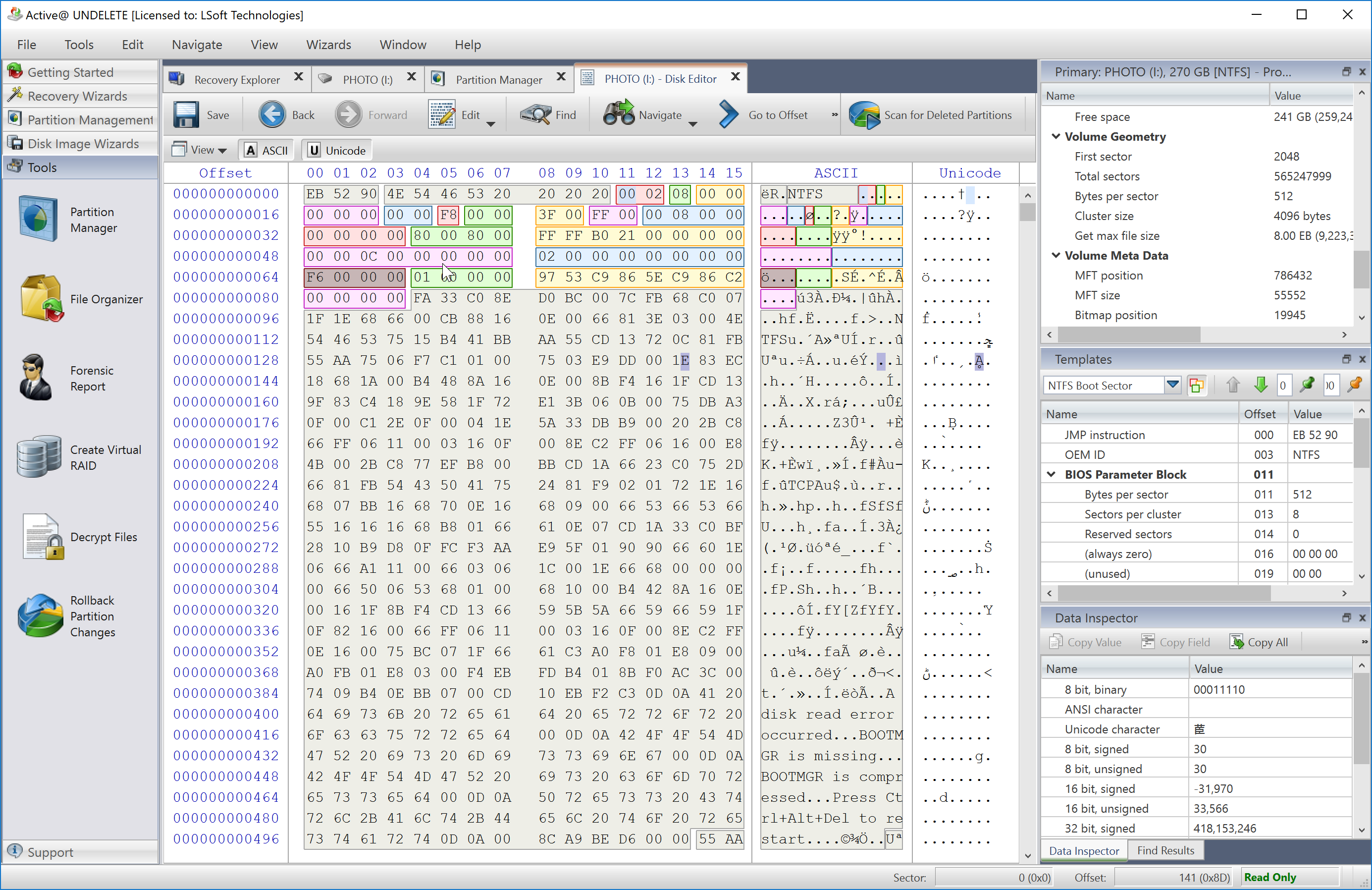
Hex Editor is an advanced tool for viewing and editing sectors of Physical Disks, Partitions and contents of any file type. Hex Editor uses a simple, low-level disk viewer which displays information in binary and text modes at the same time. You can use this view to analyze the contents of data storage structure elements such as:
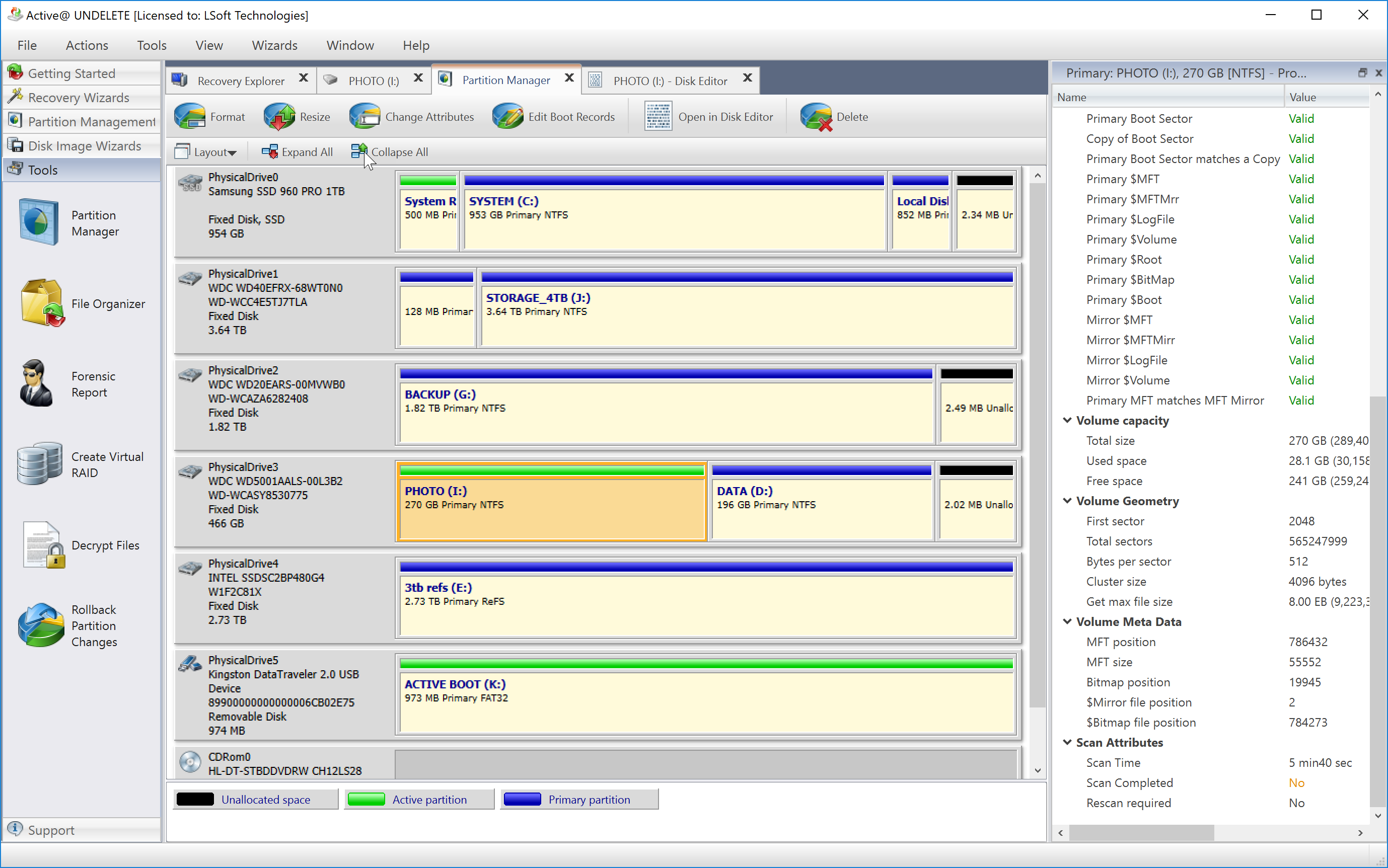
Partition Manager is advanced Active@ UNDELETE tool, that allows you to perform partition related tasks,such as creating partitions and volumes, formatting them, and assigning drive letters.
The main features of Partition Manager are:
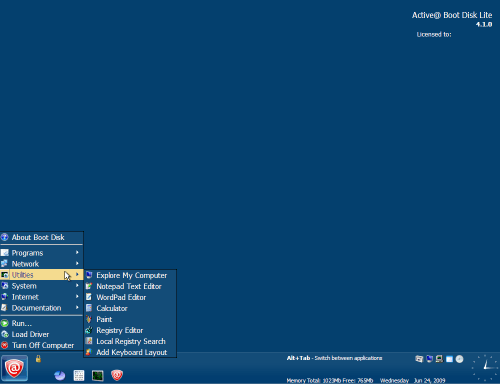
Active@ UNDELETE Ultimate package. Active@ UNDELETE started from the Active@ Boot Disk on not-bootable system and is ready for the system recovery. Active@ UNDELETE Ultimate package includes an Emergency CD (boot disk). Active@ UNDELETE Ultimate package includes plenty of tools besides Active@ UNDELETE - data recovery utility:

